
In the digital age, video content has become a powerful medium for communication and creativity. YouTube, being one of the largest video-sharing platforms globally, offers a dynamic space for content creators to share their stories, ideas, and experiences. Editing your YouTube videos can significantly enhance their quality and engagement. In this guide, we’ll walk you through the process of how to edit YouTube videos, from start to finish.
Introduction on How to Edit a YouTube Video
Before you begin editing your YouTube video, it’s essential to have a clear vision of the final product. What’s the message you want to convey? What style or tone should your video have? These considerations will guide your editing process.
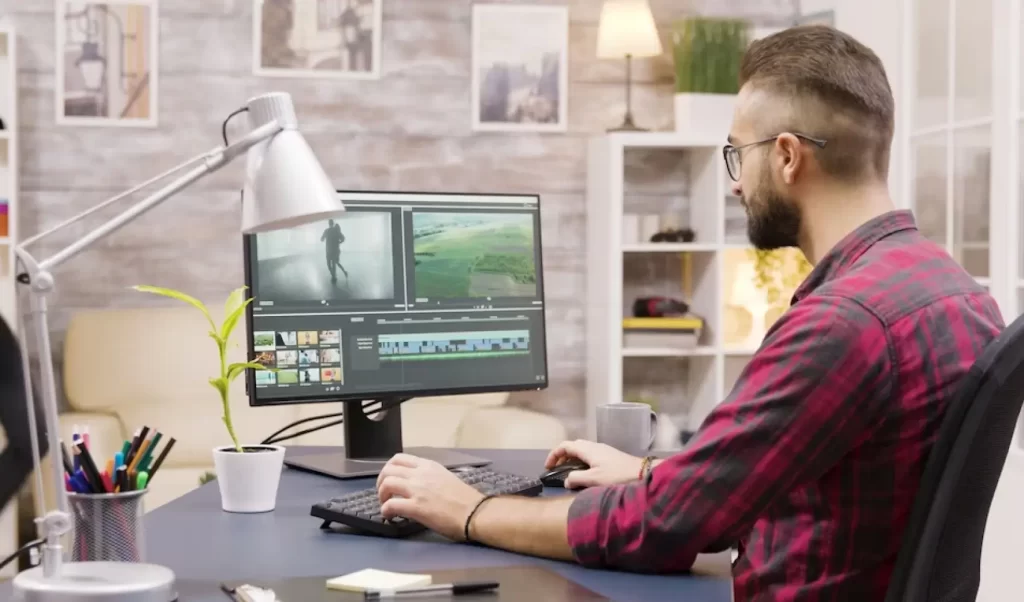
Best Video Editing Software for YouTube: Edit Videos for YouTube
Choosing the right video editing software is crucial as it will save time and deliver quality results. There are many great video editing software options for YouTube, depending on your level of expertise and specific needs. Some popular choices among YouTubers include:
1. Adobe Premiere Pro: This professional-grade editing software offers a wide range of advanced features and tools, making it a top choice for many YouTubers.
2. Final Cut Pro X: This software is exclusive to Mac users and is known for its user-friendly interface and powerful editing capabilities.
3. iMovie: This free software comes pre-installed on Mac computers and is a great option for beginners or those on a tight budget. It offers basic editing tools and a simple interface.
4. Filmora: This user-friendly software is great for beginners and offers a wide range of features, including a large collection of effects, transitions, and filters.
5. Sony Vegas Pro: This software is popular among YouTubers for its powerful editing capabilities and user-friendly interface.
Ultimately, the best video editing software for YouTube depends on your personal preferences, budget, and editing needs. It’s recommended to try out different options to see which one works best for you.
YouTube Video Editor: Edit YouTube Videos with YouTube Editor
YouTube Video Editor is a tool that allows users to edit and enhance their YouTube videos. With this editor, you can easily trim and cut sections of your video, add music or sound effects, adjust the brightness and color, and even add text or subtitles.
The YouTube Video Editor provides a simple and user-friendly interface, making it easy for both beginners and experienced editors to create professional-looking videos. You can upload your own videos or use the editor’s library of stock footage to create unique and engaging content.
In addition to basic editing features, the YouTube Video Editor also offers advanced tools for more experienced users. These include options for adding transitions between clips, adjusting audio levels, and applying visual effects.
Once you’ve finished editing your video, you can save it directly to your YouTube channel or download it to your device. The editor also provides options for sharing your video on social media platforms like Facebook and Twitter.
Whether you’re a vlogger, content creator, or just someone who enjoys making videos, the YouTube Video Editor has everything you need to create high-quality content for your YouTube channel.

Gathering & Importing Your Footage
Organize all your video clips, images, and audio files in a dedicated folder. This step streamlines the editing process and ensures you have everything you need at your fingertips.
Open your chosen video editing software and import your footage into the project. Most software allows you to drag and drop files easily.
Understanding the Editing Interface
Familiarize yourself with the software’s interface. Learn where the timeline is, how to import media, and where to access editing tools.
Basic Editing Techniques to Make YouTube Videos
Trimming and Cutting: Trimming and cutting clips help remove unwanted segments and create a more concise video.
Adding Transitions: Transitions smooth the jump between clips and add a professional touch.
Adjusting Playback Speed: Change the speed of specific clips to create dramatic or comedic effects.
Next Steps to Edit your YouTube Videos
Adding Music and Sound Effects: Audio plays a significant role in video editing. Add background music and sound effects to enhance your video’s impact.
Enhancing Visuals with Filters and Effects: Experiment with visual filters and effects to give your video a unique look.
Adding Text and Titles: Include text and titles to provide context or highlight key points in your video.
Color Correction and Grading: Adjust colors to make your video visually appealing and consistent.
Exporting Your Edited Video: Once you’re satisfied with your edits, export the video in the desired format and quality settings.
Uploading to YouTube: Log in to your YouTube account and click the upload button to add your edited video.
Optimizing Video Title, Description, and Tags: Write an engaging title, a detailed description, and relevant tags to optimize your video for search.
Promoting Your Edited Video: Share your video on social media platforms and engage with your audience to increase its visibility.
Engaging with Your Audience: Reply to comments, encourage discussions, and build a community around your content.
How to Edit YouTube Videos Online? Video Editing Tools
Editing YouTube videos online is a convenient and efficient way to enhance your content. There are various online video editing tools available that can help you achieve professional-looking results. First, upload your raw footage to a video editing platform like YouTube Studio or Adobe Premiere Rush.
Trim and arrange your clips to create a cohesive storyline. Then, add music, sound effects, and transitions to make your video visually appealing. You can also insert text overlays and captions to improve accessibility. Experiment with different filters and color corrections to enhance the overall look of your footage. Finally, preview your edited video and make any necessary adjustments before exporting it to your YouTube channel. With the right online video editing tools, you can easily create engaging and compelling content for your audience.
Conclusion to YouTube Video Editing
Editing a YouTube video may seem daunting at first, but with the right software and a creative mindset, you can produce compelling content that resonates with your audience. Remember to stay true to your unique style and continuously improve your editing skills.
Frequently Asked Questions (FAQs)
- Can I edit videos on my smartphone?
Yes, many mobile apps offer video editing capabilities, making it convenient to edit on the go.
- Do I need a high-end computer for video editing?
While powerful hardware helps, basic video editing can be done on most modern computers.
- How long does it take to become proficient in video editing?
It varies, but with practice and tutorials, you can become proficient in a few months.
- Can I use royalty-free music in my YouTube videos?
Yes, there are many websites offering royalty-free music for use in YouTube videos.
- Should I edit my videos before or after uploading to YouTube?
It’s generally better to edit your video before uploading for a polished final product.